NEW OFFICIAL ADDRESS
El Código del Día now lives at elcodigodeldia.com
Your games and account remain on the server. A browser session and an installed web app cannot be transferred automatically between two domains.
https://elcodigodeldia.com
First: preserve your access
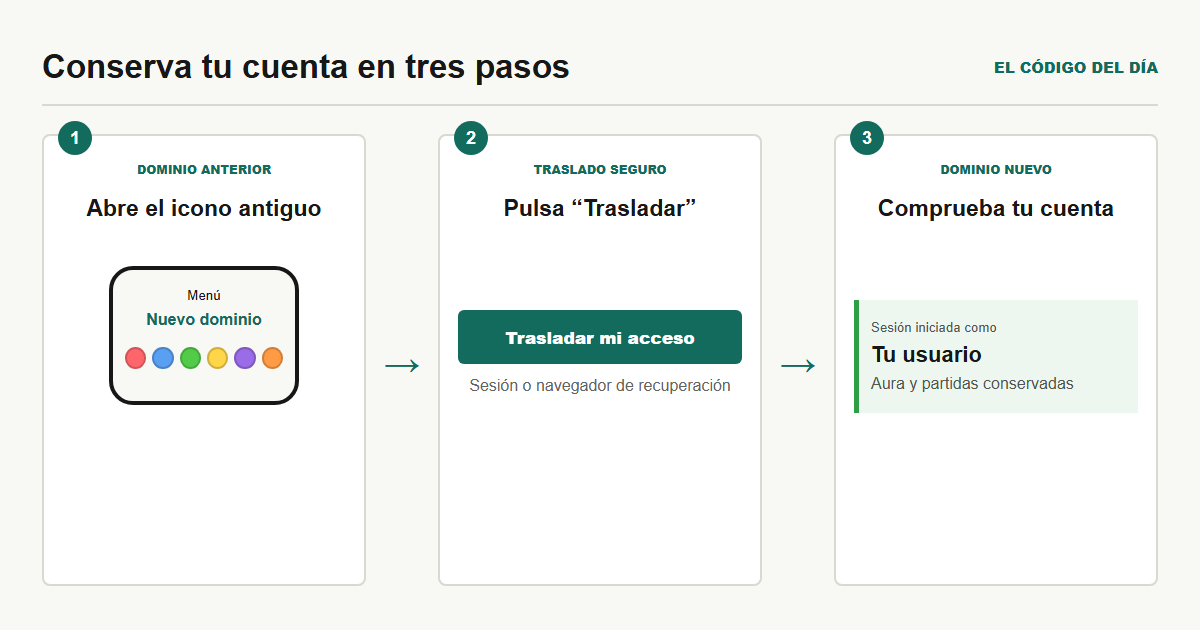
- If you have the old icon, open it. Open the menu and select New domain. This starts the process from the browser or app that still holds your old data.
- Select the ‘Transfer my access’ button. The old domain will check your session. If it is no longer active, it can use the recovery browser you enabled.
- Wait until you return to elcodigodeldia.com. The transfer code lasts only a few minutes, works once and does not reveal your password.
- Check your name on the Account page. Do not remove the old installation until you can see your profile and Aura on the new domain.
If it does not recognise you: open the old icon again and start the transfer there. If it no longer has a session or recovery browser either, sign in on the new domain with your username and password.
If you already had it installed as an app
The old installation will remain associated with elcodigodeldia.iotromero.ddns.net. It may continue to open during the transition, but it does not automatically become an installation of elcodigodeldia.com. The system treats them as two different addresses.
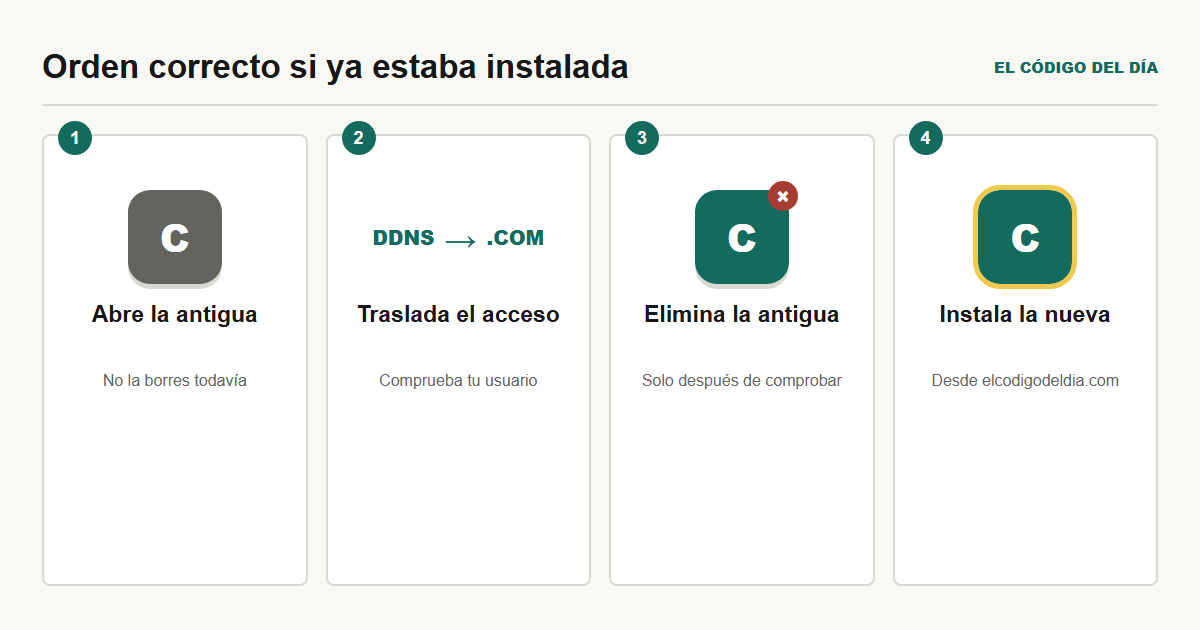
- Open the old installation one last time and complete the transfer described above.
- Check your account on the new domain.
- Only then remove the old icon or web app from your device by following the instructions for your system below.
- Install again from https://elcodigodeldia.com.
- If you used notifications, enable them again. Permission and the subscription belong to the old domain and cannot be transferred.
IPHONE OR IPAD
Install from Safari
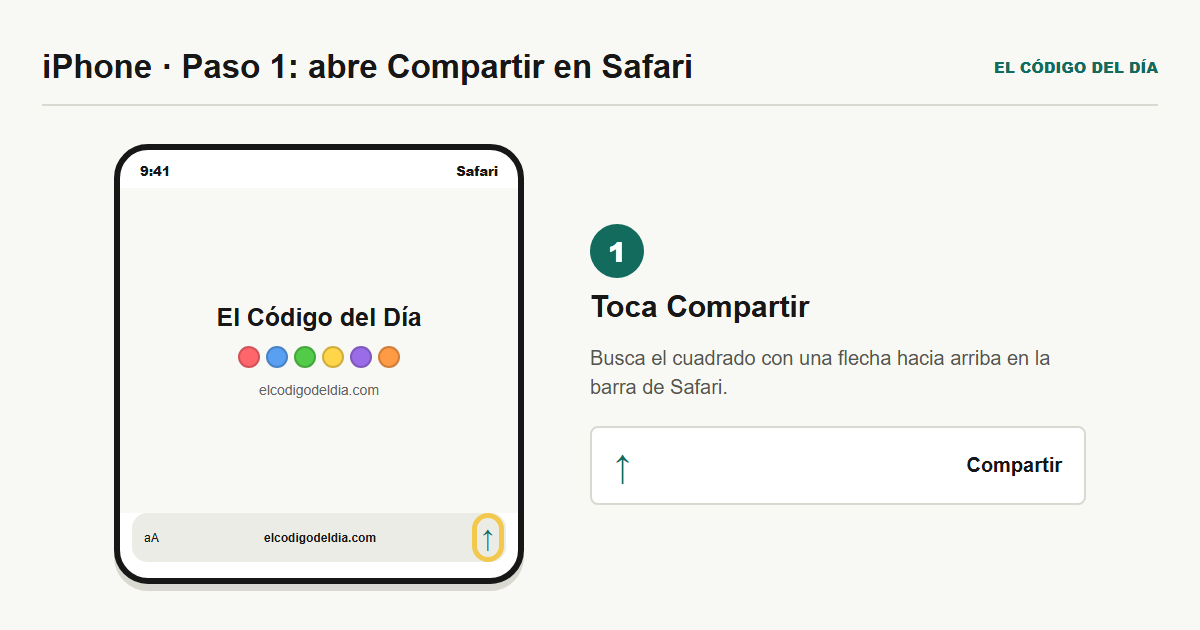
- Open Safari and enter elcodigodeldia.com.
- Tap the Page menu and then Share. Depending on your Safari layout, the Share button may appear directly.
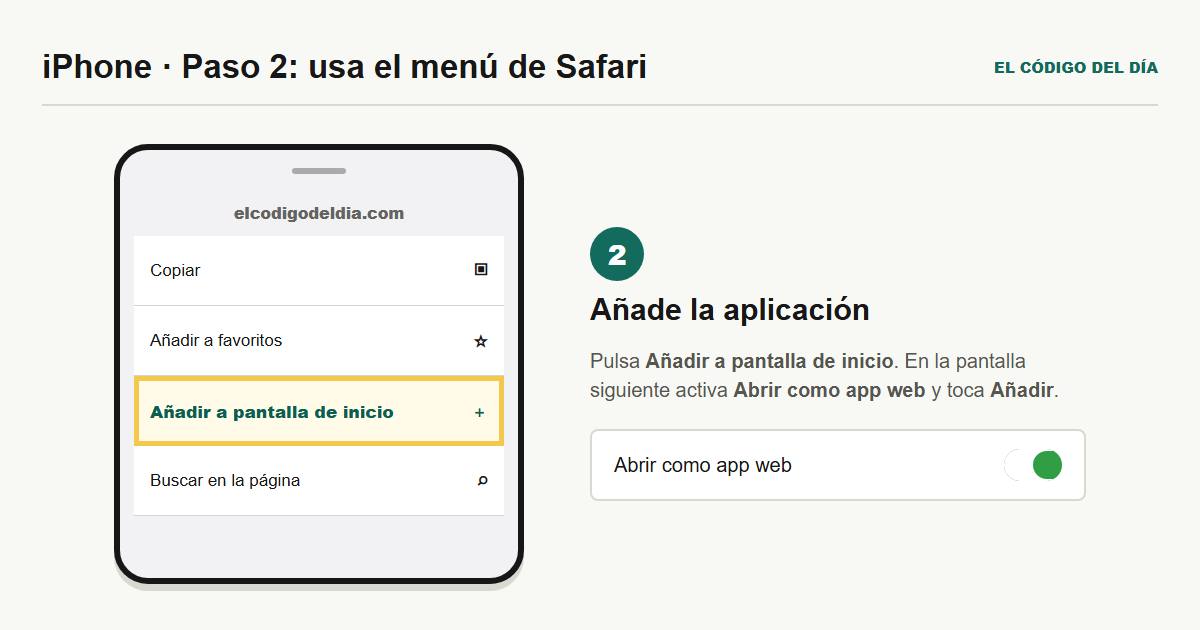
- Scroll and select Add to Home Screen. If it does not appear, open Edit Actions and add it.
- Enable Open as Web App and select Add.
- Open the new icon, go to Account and allow notifications again if you want them.
- After checking the account, press and hold the old icon and choose Delete App or Delete Bookmark. The wording may vary by iOS version.
ANDROID
Install from Chrome
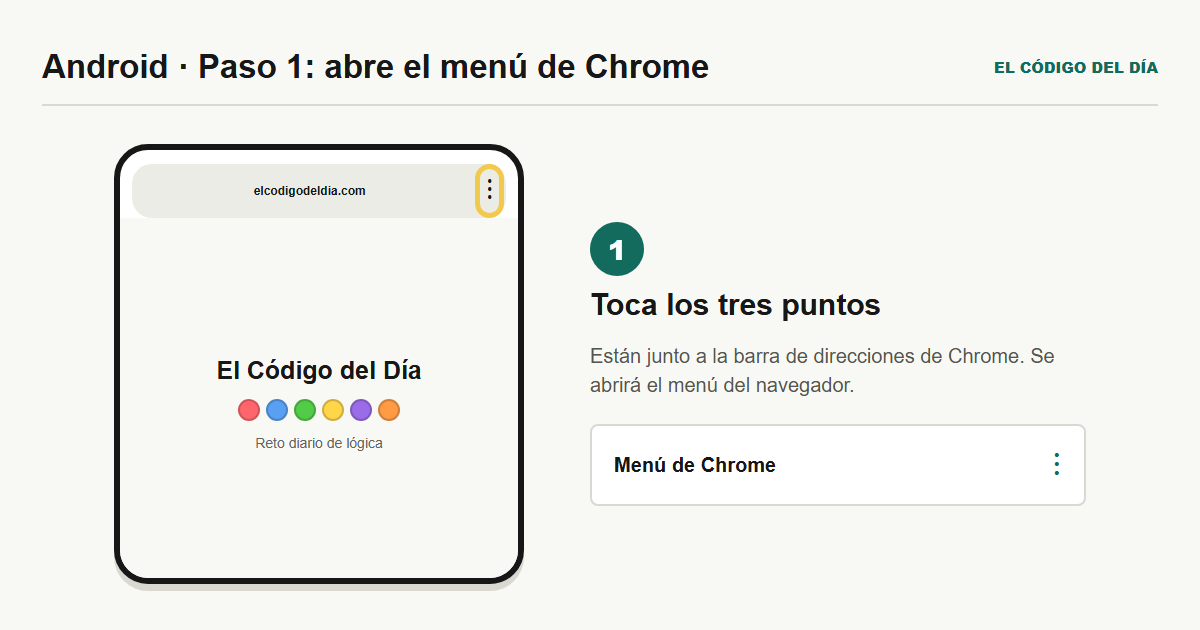
- Open Chrome and enter elcodigodeldia.com.
- Tap the three-dot menu beside the address bar.
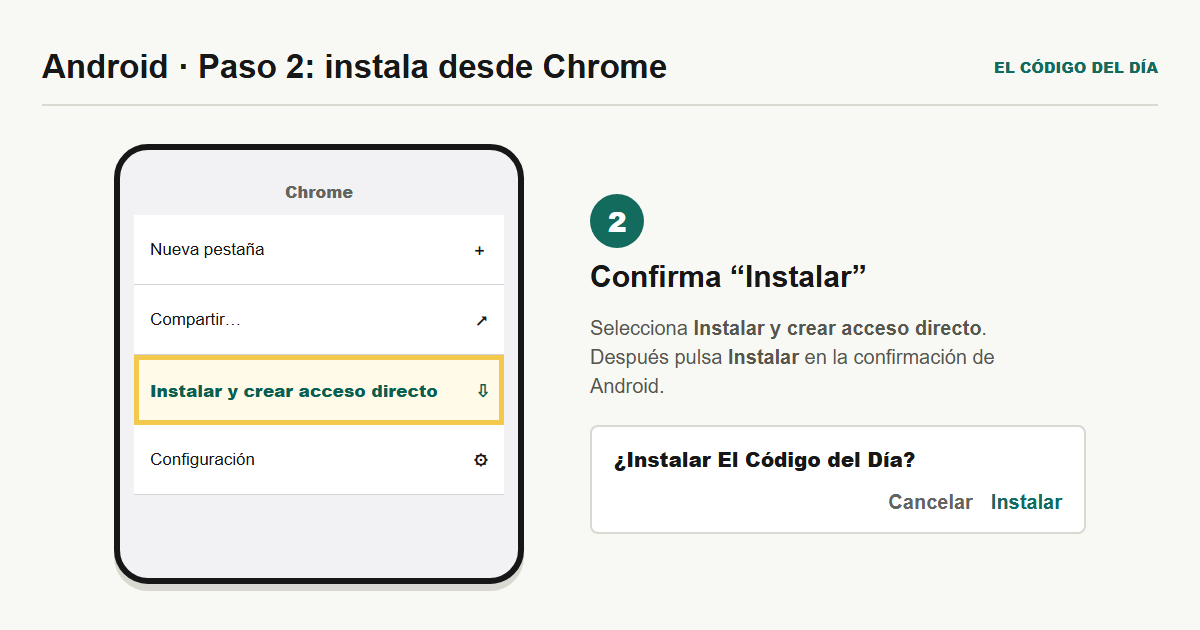
- Open Install and create shortcut and select Install.
- Follow the confirmation shown by Android. The new icon will appear on the Home screen or in the app list.
- Open the new icon, check your account and enable notifications again if you used them.
- After checking the account, remove the old installation from Ajustes > Aplicaciones > Ver todas las aplicaciones, select the old El Código del Día installation and choose Uninstall. On some phones it also appears when you press and hold the icon.
Frequently asked questions
Will I lose my games, Aura or groups?
No. They are linked to your account on the server. You only need to identify that browser again on the new domain.
Does the old installation stop working immediately?
Not during the transition period, but it will still belong to the old domain. Transfer your access and replace it with the new installation.
Do I need to allow notifications again?
Yes. Web Push permission and subscription are associated with the domain you installed. Enable them from the new installation when the browser allows it.
Can I keep both icons while checking that it works?
Yes. This is the safest approach: keep the old one until you have checked your account on the new domain, then remove it to avoid confusion.